Editing Courses
📖 Note: This article provides detailed information for an Admin or Manager with ‘Manage Training' permission on how to edit a course.
Editing a Course
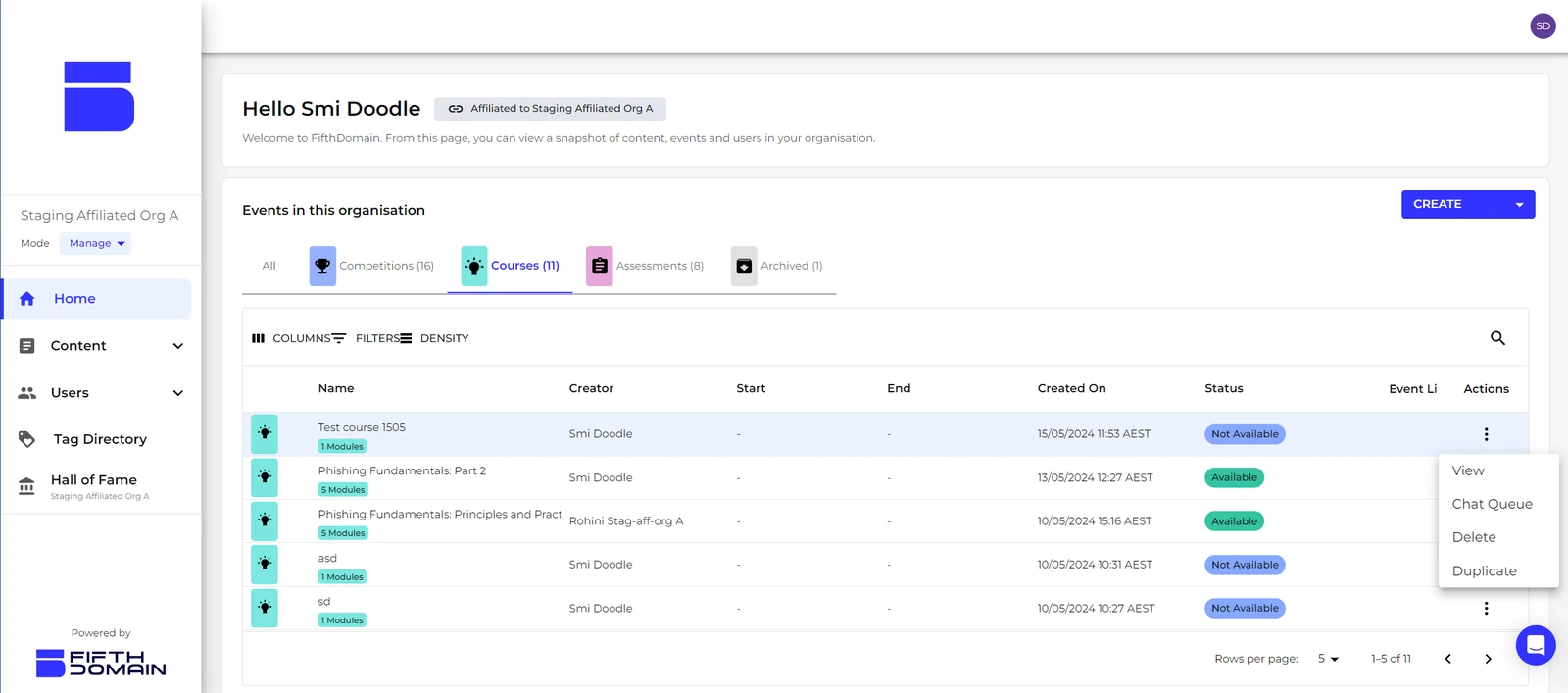
On the "Manage" mode homepage, in the Events table, click on the Courses[1] tab to get access to all courses created on the platform.
To edit a particular course, click on the row action[2] icon of the course, and click View[3].
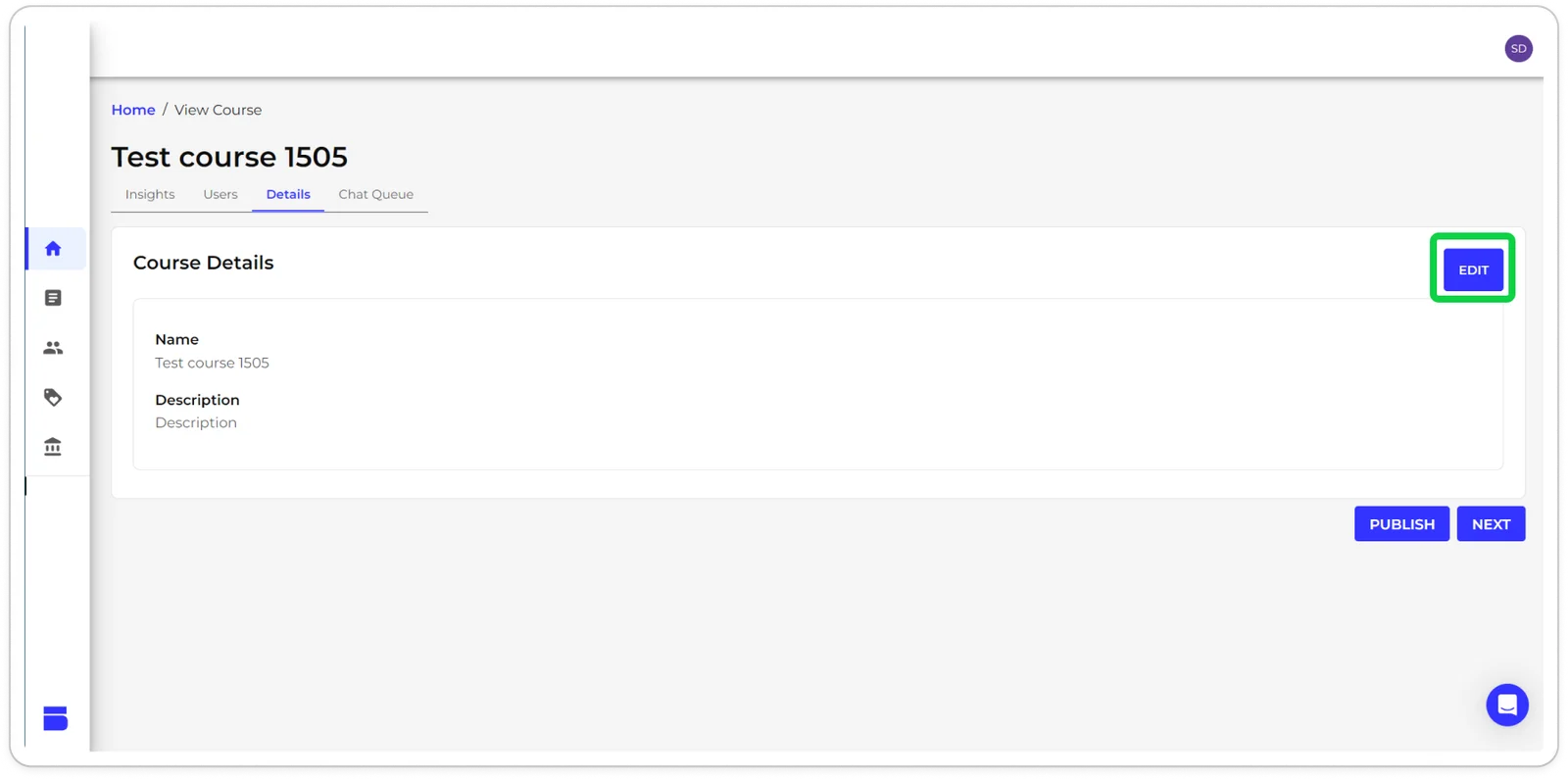
If there’s a section you’d like to change, click the Edit [1] button, as shown below.
Editing Course Details
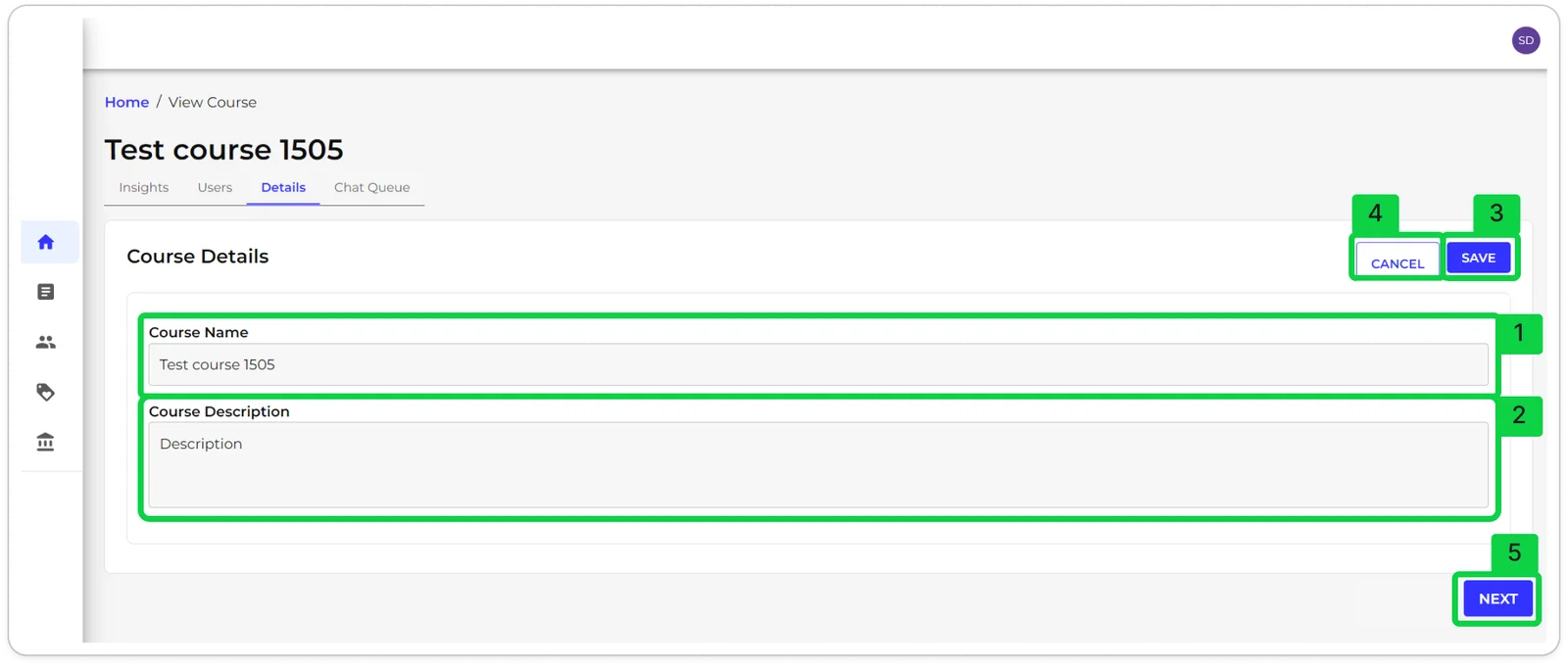
You can edit the Course Name [1] or Course Description [2] by typing into the respective text boxes.
Once you’ve finished making changes to the section, click Save [3] or Cancel [4] to lose any changes made.
You can also click Next [5] to edit Module, and Module part details.
📖 Note: You’ll get a warning message if you haven’t saved your changes before moving to the next page.
Editing Course Materials
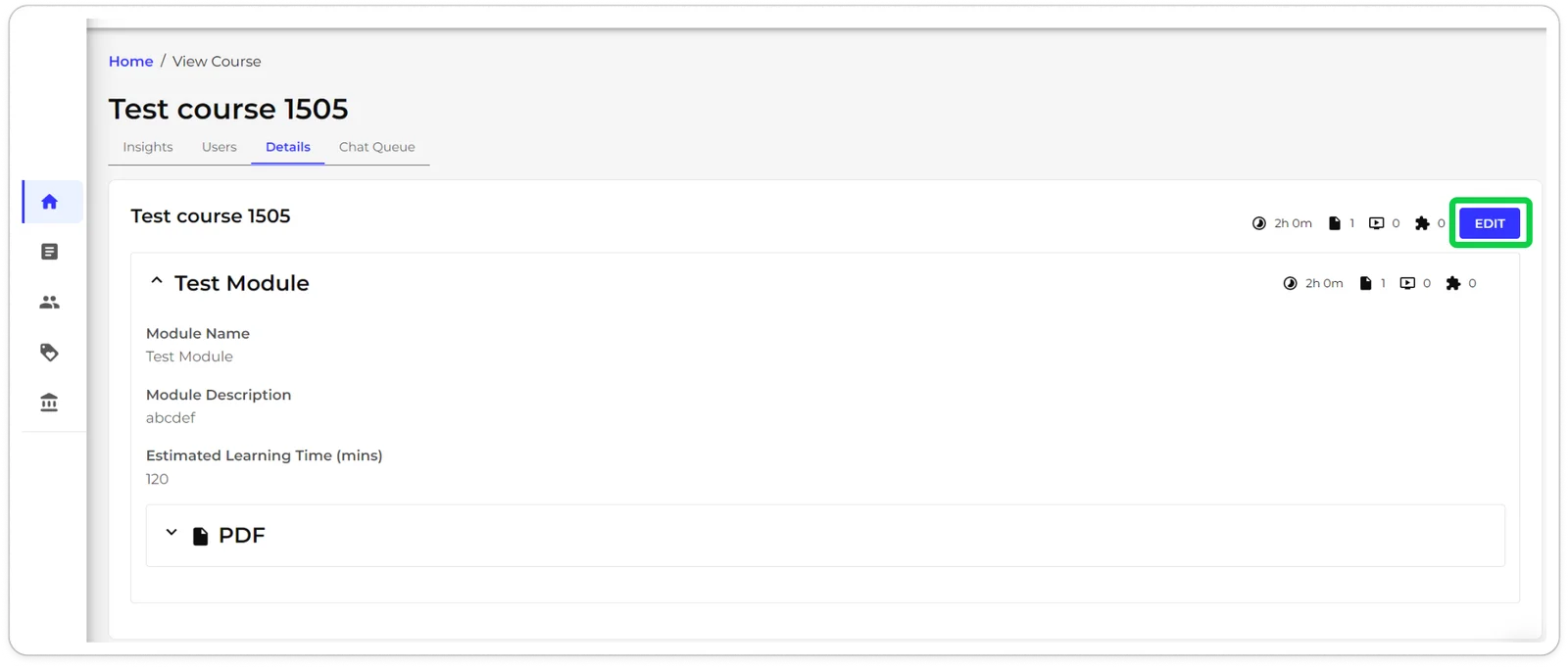
Upon clicking Next, you enter the Modules page. If you want to edit the module(s) and/or their constituent parts, click Edit.
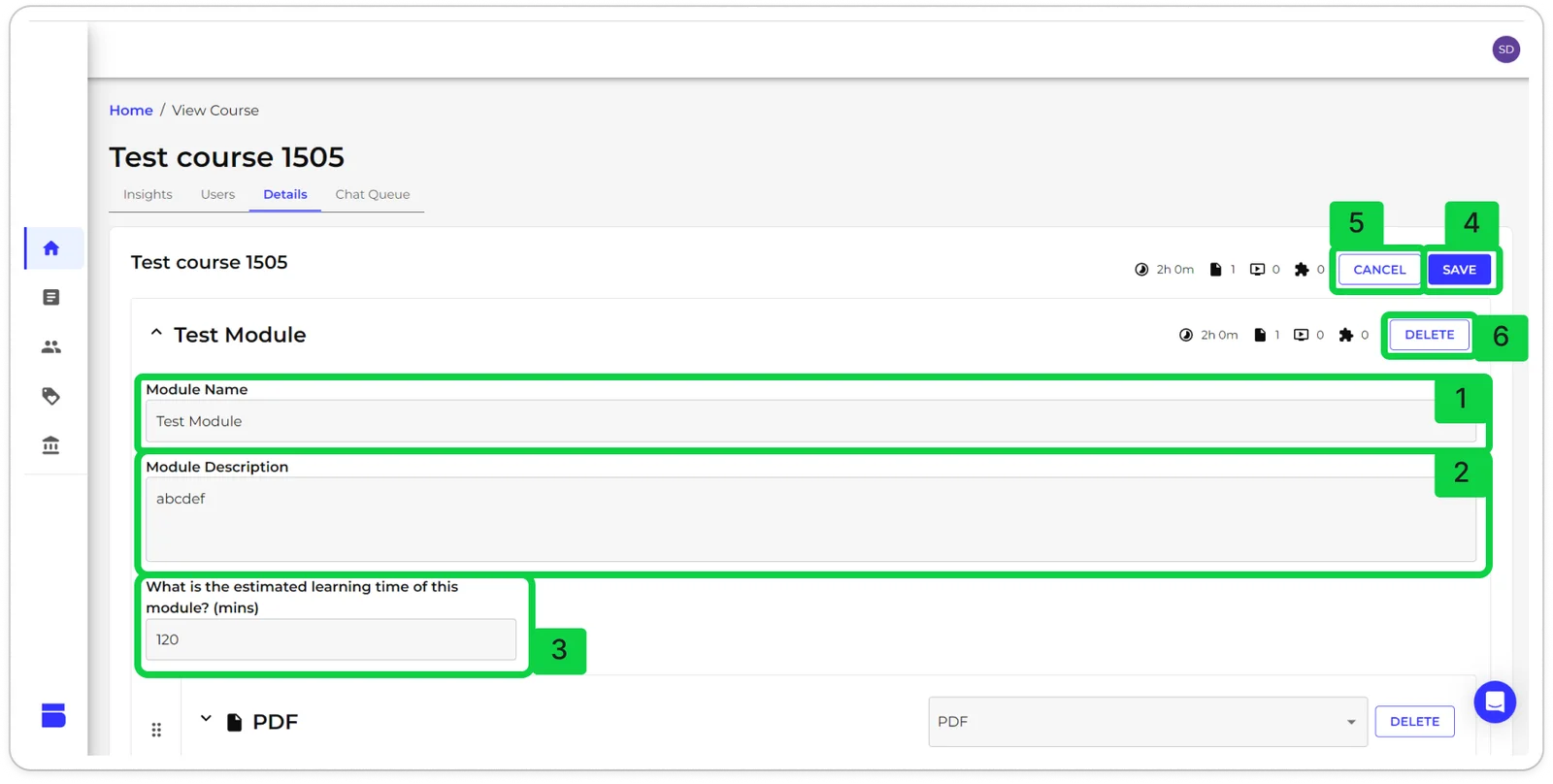
The Course Materials page lets you edit all modules and parts in the course. You can edit the Module Name [1] and Module Description [2] by typing into their respective text boxes. You can override the estimated time to learn the module by typing in the Estimated time to learn[3] section. Once done you can Save[4] the changes, or Cancel[5] them. You can also click Delete [6] to remove a module.
Editing Parts
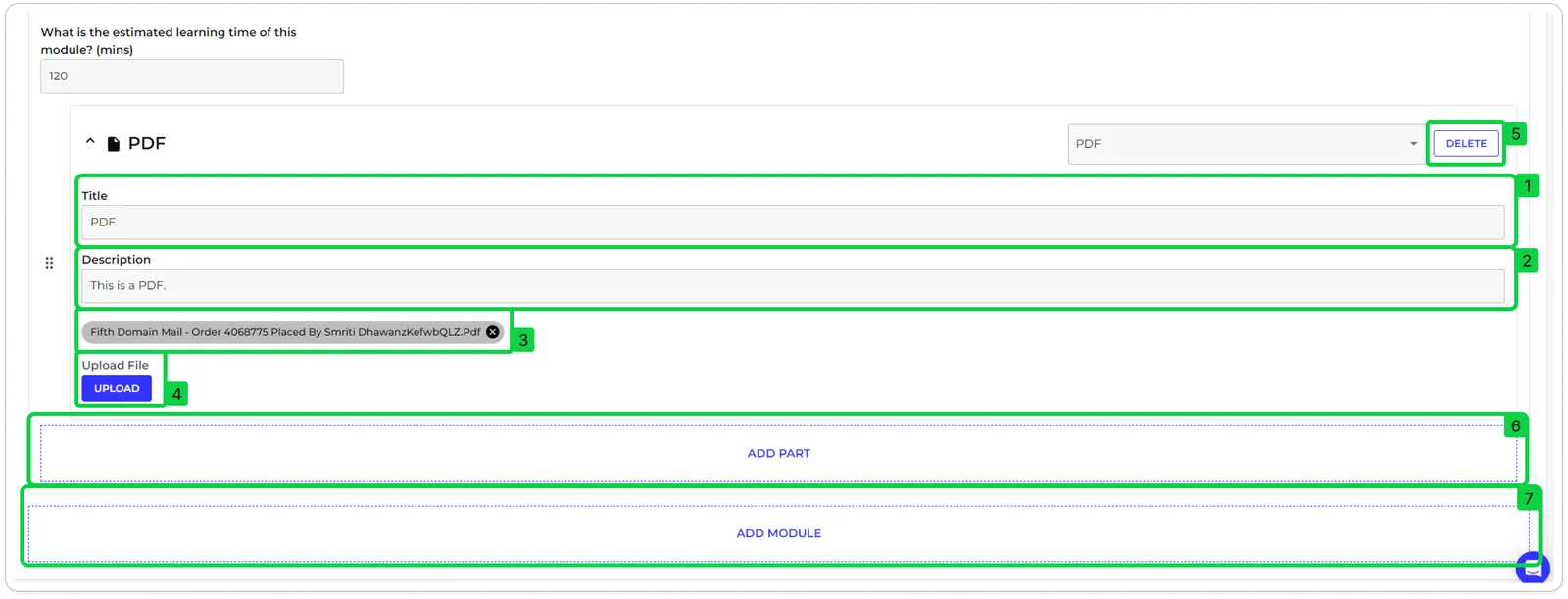
You can expand on parts, and overwrite their details. For example, in the screenshot below, you can see that the all details including the title[1] , Description[2] can be edited. The file[3] can be removed, and you can Upload[4] a new one.
If you wish, you can Delete[5] this part from the module, or add a new one by clicking Add Part[6].
You can also add a new module while editing a course by clicking Add Module[7].
📖 Note: You can also reorder parts within a module by dragging them to the desired order.
📖 Note: All labs in lab parts have a duration of 2 hours. Participants can extend their lab instances as many times as they require, resetting their lab timers to 2 hours and retaining progress made. Participants can also reset their labs as needed, which will deploy a new lab instance and erase all progress.